Obba Tips and Troubleshooting
Debugging Sheets
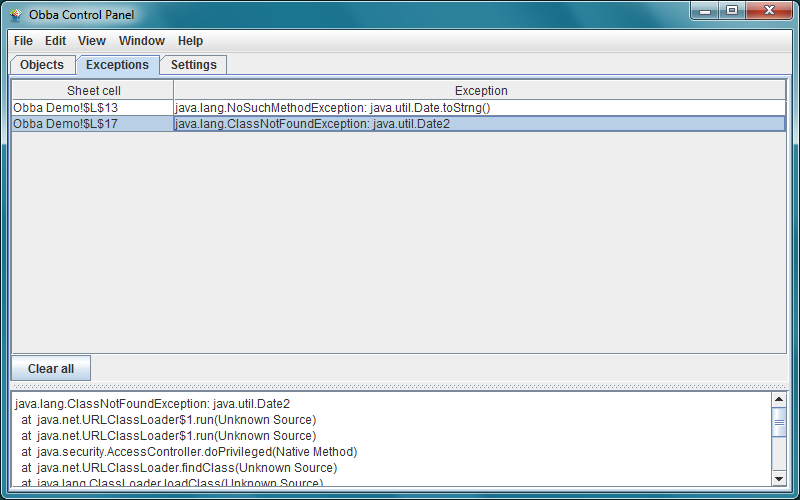
Obba Control Panel. Exception tab: showing exceptions associated with the spreadsheet cell containing the function that raised the exception.
Viewing Exceptions by Spreadsheet Cell (Obba for Excel only)
From the Obba Control Panel you may view the last Java exceptions. In Obba for Excel these are listed together with the spreadsheet cell containing the function call which ultimately raised the exception.
Note: The feature is not available with Obba for LibreOffice/OpenOffice due to limitations in LibreOffice and OpenOffice (if you like to have this feature, vote for it at Apache OpenOffice Bugzilla or at StackOverflow).
Java Debugger
If Obba references your Java code, you can run that code under a Java debugger by launching
Obba Server directly from your IDE. For details see Obba Developer Documentation.
Alternatively you may start Obba server manually with Java debug options and connect a debugger, e.g., via
java -agentlib:jdwp=transport=dt_socket,server=y,suspend=n,address=8000 -jar Obba.jar
(and connect the debugger to port 8000).
Logging
Obba uses the standard java.util.logging.Logger. By default logging is enabled. The java default is to send log output to the console.
Enabling Java logging to a file
To enable logging to a file edit the file $JAVA_HOME/lib/logging.properties (on Mac OS X this is /Library/Java/Home/lib/logging.properties) and use a line like
handlers= java.util.logging.FileHandler, java.util.logging.ConsoleHandler
By default, the log file will be created in your home directory.
To view the log file, a log viewer like OtrosLogViewer may come in handy.
Enabling Java logging to a remote log viewer
To enable logging to a (network) socket edit the file $JAVA_HOME/lib/logging.properties (on Mac OS X this is /Library/Java/Home/lib/logging.properties) and use a lines like
handlers= java.util.logging.SocketHandler
java.util.logging.SocketHandler.host = 127.0.0.1
java.util.logging.SocketHandler.port = 8888
(or any other port).
To view the log, a log viewer like OtrosLogViewer may come in handy.
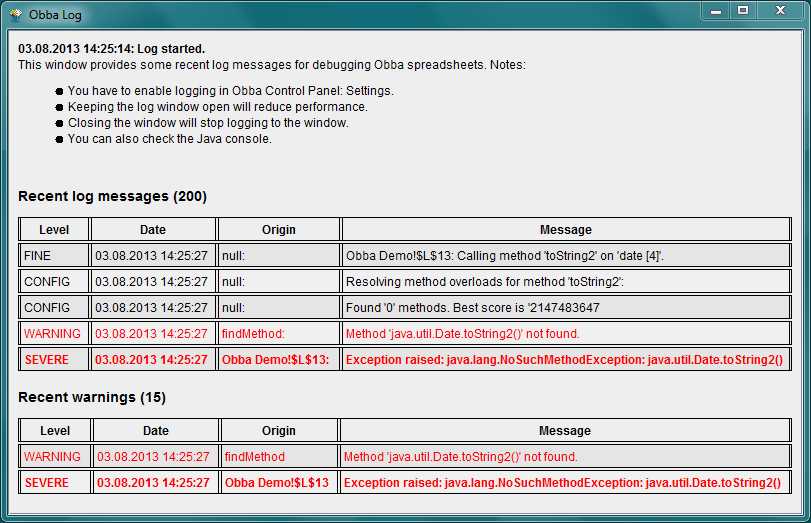
The Obba log window.
Obba Control Panel Log Window
You can start a small log viewer via Obba Control Panel: Windows: Show Log Window.
Here you find details which objects where created under which label and which objects were accessed.
Troubleshooting
Object handle not found.
The most common mistake when using Obba function calls is to pass a literal value where an object handle is expected.
See "Passing Literals" in the Obba documentation.
Spreadsheet does not calculate or hangs.
The spreadsheet client tries to connect to a server using the settings in ObbaClient.properties or the default settings (which is looking on the client machine at port 10000). If a server cannot be found, the client will start a local server automatically. This may take a while. If the local server cannot be started the client will retry, eventually give up and the sheet will not calculate Obba functions. In this case try to manually start a server and if that fails check for the error message (see below).
Unable to start server manually.
If you start an Obba server manually and you see the error message Unable to start server. this is likely due server being unable to open the specified tcp/ip port. The default port for Obba server is 10000. In this case, check if another program using port 10000 is already running (this could be another Obba server).
Using Obba from VBA
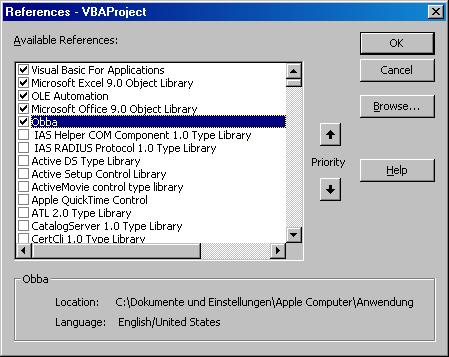
Adding a reference to Obba in order to use the Obba functions from VBA.
Although Obba allows to create Java enabled sheets without any glue code, you can of course use Obba from VBA.
Setting up your VBA: Adding a reference to Obba
To use Obba from VBA you have to add a reference to Obba:
- Load Obba.xla if it is not already loaded.
- Open Visual Basic Editor from your Excel Workbook.
- Make a reference to Obba by selecting Tools -> References... (see Screenshoot).
- You may now use the Obba functions in VBA.
Example
The following VBA code instantiates a java.util.Date object and calls toString on it to print the current date in cell A1:
Sub Test()
Dim dateObjectHandle As String
Dim dateStringHandle As String
Dim dateStringValue As String
dateObjectHandle = obMake("myDate", "java.util.Date")
dateStringHandle = obCall("myDateString", dateObjectHandle, "toString")
dateStringValue = obGet(dateStringHandle)
Range("A1").Value = dateStringValue
End Sub
Migrating Obba-Enabled Sheets
Migrating Obba-Enabled Sheets from Excel to OpenOffice
- Save your Excel file in xls format.
- Open that file (.xls edited with Excel) in OpenOffice.
All calls to Obba will start with #NAME! (because the name of the Obba for Excel add-in is not mapped to the Obba for OpenOffice add-in).
- Open the "Find & Replace" dialog (Command-F) and enter the following values:
- Search: #NAME!
- Leave the "Replace" field empty.
- Select "More Options" and then "Search in all sheets".
- Select "Replace All".
- Save the file in odt format.
Migrating Obba-Enabled Sheets from OpenOffice to Excel (XLS Format)
- Save your file with OpenOffice in xls format.
- Open that file (.xls edited with OpenOffice) in Excel.
All calls to Obba will perform correctly, but the cell shows #NAME (because the function is not recognized as being associated with the Obba for Excel Add-In).
- Open the "Replace..." dialog (Ctrl-H) and enter the following values:
- Find what: =
- Replace with: =
- Options: Within: Workbook
- Select "Replace All".
Note: Replacing "=" with "=" does not change anything in the sheet, but formulas will be reinterpreted. As a result, the Obba function calls will be associated with the "Obba for Excel" add-in. Ensure that this is applied to the whole workbook.
- Save the file in xls format.
Migrating Obba-Enabled Sheets from OpenOffice to Excel (XLSX Format)
- Save your file with OpenOffice in xlsx format.
- Open that file (.xlsx edited with OpenOffice) in Excel.
All calls to Obba will fail, because all Obba functions will start with a prefix INFO.OBBA.OBBA. (because the name of the Obba for OpenOffice add-in is not mapped to the Obba for Excel add-in).
- Open the "Replace..." dialog (Ctrl-H) and enter the following values:
- Find what: INFO.OBBA.INFO.
- Replace with:
- Options: Within: Workbook
- Select "Replace All".
Note: Note that the is a dot (.) at the end of INFO.OBBA.INFO.. The value in the Replace with:-field is an empty string. Ensure that this is applied to the whole workbook.
- Save the file in xls format.
Setting the Java Runtime Policy
If libraries used through Obba need certain access rights (e.g. for a network connection), you must ensure that the Java runtime used by Obba has the appropriate rights (java.policy). There are several alternatives:
- You can edit an existing policy file in your home folder.
- You can create a new policy file in your home folder.
- You can add a profile and point to it using a parameter of the Java runtime.
- You can edit the system wide policy file.
See also Default Policy Implementation and Policy File Syntax.
Location and name of the policy file
Note: java.home refers to the value of the system property named "java.home", which specifies the directory that houses the runtime environment - either the jre directory in the Java 2 SDK or the top-level directory of the Java 2 Runtime Environment.
Windows
On Windows the system wide policy file for the system JRE is java.home\lib\security\java.policy.
The user specific policy file is .java.policy and located in %USERPROFILE%.
Creating a New Policy File in Your %USERPROFILE% Folder
If you do not have a .java.policy file in your %USERPROFILE% folder, then you can create one. If Windows does not let you create the file (since it filename has to start with a dot), then copy the file from the ZIP archive below to your %USERPROFILE%.
Unix / Obba for OpenOffice
On Unix the system wide policy file for the system JRE is java.home/lib/security/java.policy.
On Mac OS X the system wide policy file for the system JRE is java.policy and located in /Library/Java/Home/lib/security/.
The user specific policy file is .java.policy and located in $HOME.
Adding an Additional Policy File
If you want to add an additional policy file having a different name or in a different folder, then you need to add the following argument to the JRE: -Djava.security.policy=someURL
where someURL is the path to the policy file (using /, not the backslash).
Example
To allow socket network connections add the following to your policy file:
grant {
permission java.net.SocketPermission "*", "connect,accept";
};
(Note: It may be advisable to add a restriction to the codebase).
Issues and Known Problems
Obba for LibreOffice 4
All Platforms
-
You have to update to LibreOffice 4.0.2. Version 4.0.0 and 4.0.1 did not support recalculation of external macros on load, which left Obba sheets in an inconsistent state.
Obba for OpenOffice/LibreOffice
All Platforms
-
Installing Obba.oxt results in the error message Could not create Java implementation loader.
Solution: Obba needs a Java runtime and the Java runtime has to be enabled in LibreOffice.
-
Install a Java runtime. For OS X you may install a Java runtime from Apple from support.apple.com/kb/DL1572
-
Enable the Java runtime in Tools -> Options -> Advanced (Windows) or LibreOffice -> Preferences -> Advanced (OS X).
http://support.apple.com/kb/DL1572
-
OpenOffice not loading libraries with relative path. In some cases the spreadsheet functions obAddJar, obAddAllJar, and obAddClasses may fail to resolve the absolute path to the library/libraries, when used with a relative path, i.e., if their second argument is TRUE(). The problem is due to a bug in OpenOffice which does not allow resolving the absolute path of a spreadsheet at load time. In order to work, the functions hence use a so called volatile result and update the path, once it is available. However, volatile results are problematic since two identical function calls (same function with same arguments) have to return the same result (note: we have suggested a corresponding feature request to the OpenOffice dev team). If a function obAddJar, obAddAllJar, and obAddClasses appears with the exact same arguments in different sheets (open at the same time), the absolute path will always resolve to that of the workbook opended last.
Solution: If you work with sheets which use obAddJar, obAddAllJar, and obAddClasses and relative paths, make sure that all open workbooks reside in the same folder or the functions calls differ in their arguments. This is for example the case for the sheets in the Demo folder of the Obba distribution archive.
OpenOffice 3.x for Linux (e.g. Ubuntu)
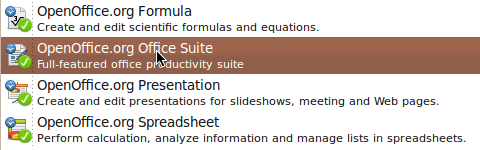
Ubuntu Software Center: You need to install the full OpenOffice.org Office Suite.
- Obba.oxt extension not installed. On some Linux versions (like Ubuntu), installation of the extension Obba.oxt may fail with the error message
Could not create java implementation loader
or the message
(com.sun.star.registry.CannotRegisterImplementationException)
{ { Message = "", Context = (com.sun.star.uno.XInterface) @0 } }
Solution: Ensure that you have enable a Java Runtime in OpenOffice. Check OpenOffice->Preferences->Java or Tools->Options->Java. If that does not help, reinstall the "OpenOffice.org Office Suite" from the Ubuntu Software Center. It is not sufficient to install "OpenOffice.org Spreadsheet" only and a separate JRE.
Other Tips
What follows are tips which are not directly related to Obba itself, but might be useful in some application of Obba.
Stopping a running Obba Server
On OS X, Linux:
- Use pkill -f with the exact command line used to launch the server, e.g.:
given the Obba Server was launched via java -jar Obba.jar you can stop
it via pkill -f "java -jar Obba.jar".
On Windows:
- Oben a console (cmd.exe)
- Give your console a title, e.g. ObbaServer via title ObbaServer
- Start the Obba Server in this console via java -jar Obba.jar
- The process can the be killed via taskkill /fi "WINDOWTITLE eq ObbaServer*"
 Stumble It!
]
Stumble It!
]